

If you don't see your answer here, feel free to contact us... we're standing by and would love to hear from you!
Click on any moment in the timeline and you will enter the slide show mode. From there, you can click the forward/back buttons or use your right and left arrow keys to navigate the slide show.
At the top of the timeline you'll see a "Family and Friends" button which will show you everyone invited to your Moment Garden. To add more people, or edit current members, click the "Invite More" or "Manage Members" button respectively at the top of the drop down. To remove people, simply click the trash can at the end of their name in the list.
How do I control what people in my garden have access to do?
You can control each member's access to your garden by assigning a role.
- Admin - someone assigned as a garden's admin has full access to add moments, manage moments, and manage members of the garden.
- Contributor - a garden contributor can add moments to the garden, add comments and love moments
- Commenter - a garden commenter can love and comment on moments
- Loves Only - this member can interact with moments only through loves
There are multiple ways to add a moment to your Moment Garden.
- You can also add a moment right from the top of the timeline after clicking the "Add Moment" button and entering your moment in the drop down form.
- Email your child's personal email address from anywhere!
- Use the iOS or Android app
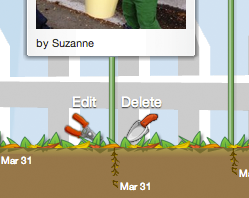
Place your mouse over the moment you want to edit or delete. An edit and delete button will show up at the bottom of the moment:
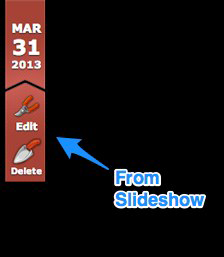
Note: You can also edit moments from the slide show. Look for the edit button in the top right corner:
Note: Edit and delete buttons will only show up if you are the admin of the garden or the contributor of the Moment.
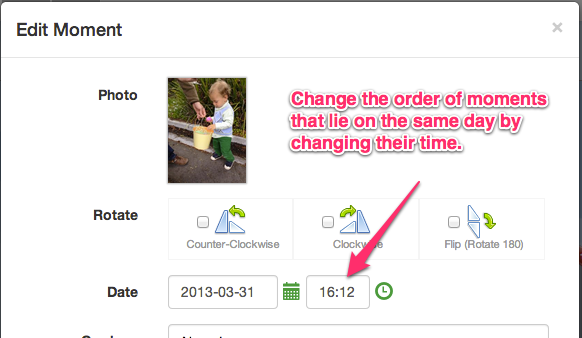
If multiple moments land on the same day (and time) they will be ordered by when they were added. If you would like to change this order, edit the time of the moment:
 How do I rotate an image or video?
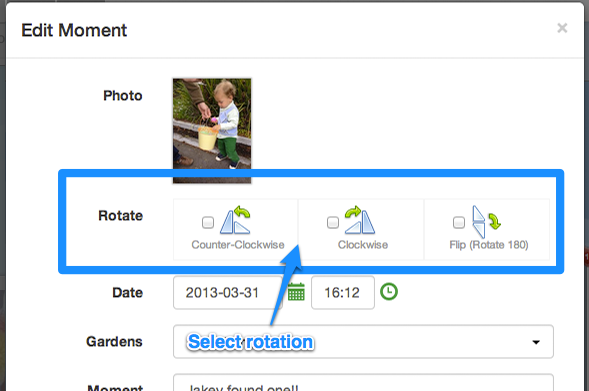
First, click the edit button(see above). On the edit screen, click the desired rotation and then click "Save."
Note: Movies can take a up to 10 minutes depending on the time it is submitted.
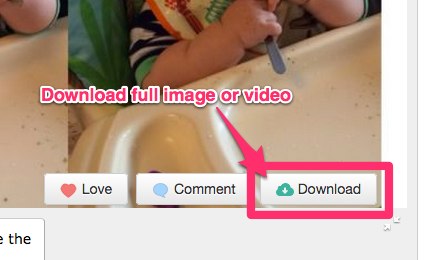
When viewing the timeline on the website, first click the moment you want to download from the timeline. This will show the moment in the slideshow. From the slideshow, click the "download" button.
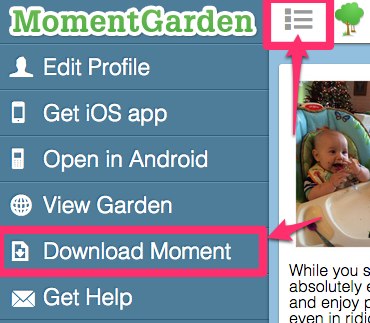
If you are viewing the moment from a mobile browser after clicking on a digest link, click the menu bar, and then the "Download Moment" link.
What video formats do you support?
We support all the latest video formats, such as: MOV, WEBM, 3GP, AVI, MV4, MPEG, and OGG.
Enjoy unlimited exporting and downloading of your garden with Moment Garden Star. For help exporting, view the Star FAQ here
To edit your picture and other details for a Moment Garden, click on the Garden's drop down button to the right of the icon. This button is located in the top left corner of the timeline.
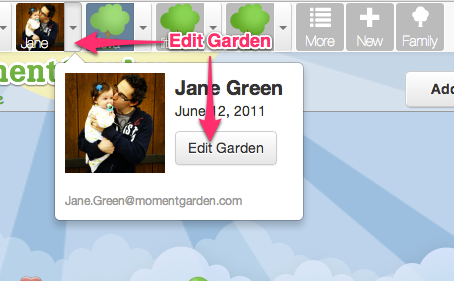
To delete a garden, first follow the instructions above to edit your garden. From the edit page, click the "Delete this garden" link at the bottom of the page.
In order to have a Family Moment Garden, you must have at least one garden you are the admin of. At the top of your gardens, you will see a family icon:
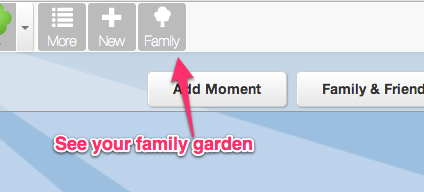
Clicking on the family icon shown above, will bring you a Moment Garden with all your kids shown in one view. At the top, you'll see a key with each child and the unique color for their moments:
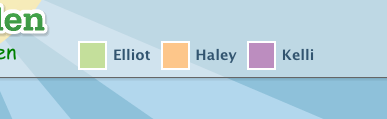
Note: Only children YOU are the admin for will show up in your Family Garden.
There is no limit to the number of photos and videos (less than 20 seconds in length) you can upload. For uploading longer videos, please see Moment Garden Star for more details.
To delete your account, first edit your profile. On the edit profile page, there is a red "Delete Your Account" button at the bottom of the page. Click that button and your account will be deleted permanently.